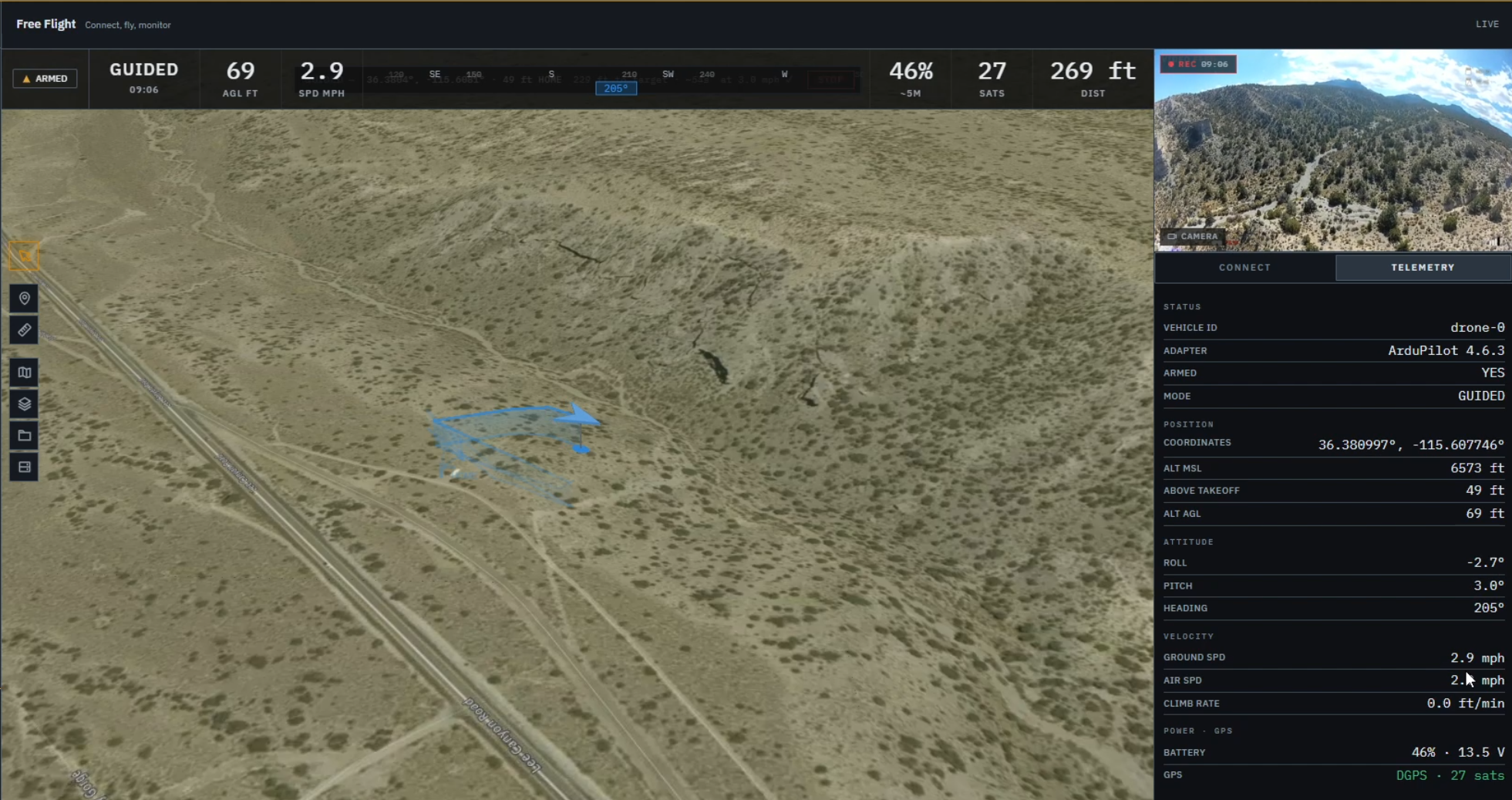
Picture a drone making a slow camera pass toward a hillside. On the ground station, the flight looks tidy. A small aircraft icon moves across the map, a trail follows behind it, and the altitude holds steady.
There’s something reassuring about that little moving symbol. You can see where the aircraft is and follow its progress, so it’s easy to feel you have the whole flight in view.
Now imagine the ground rising beneath it. The aircraft keeps the same height above home, but the gap to the hillside gets smaller. The map still shows a tidy track. The altitude still hasn’t changed.
You now have to connect the track on the map with the shape of the ground and the aircraft’s altitude. How much room is there beneath it? Is it climbing, or is the ground getting closer while its altitude holds steady?
A useful ground station helps you make those connections while the flight is still unfolding. That’s the standard we keep coming back to as we build Markhor, because the map can be accurate even when the pilot is missing part of the picture.
The ground doesn’t stay flat
An altitude reading is easy to take at face value. A number such as 80 meters feels definite, but we still need to know what it is measured from.
Height above home, height above the ground directly below the aircraft, and altitude above mean sea level describe different relationships. ArduPilot’s guide to understanding altitude explains those distinctions. For the aircraft approaching our hillside, holding the same height above home still lets the gap to the ground shrink.
There’s a little mental geometry involved. You need to place the aircraft’s altitude against the ground beneath it, then look ahead along its direction of travel. Those details tell you more about the approaching hillside than either the position marker or the altitude reading could on its own.
That’s one reason terrain views interest us. Seeing a slope rise toward the flight path can make a narrowing gap easier to recognize. A flat map remains useful for following a route and getting an overview. Different views can help answer different questions during the same flight.
There is a limit to what the picture can tell you, though. Terrain data may leave out trees, buildings and other features. A gap that looks clear on screen doesn’t establish a clear flight path, and drawing terrain doesn’t make the aircraft follow it or avoid obstacles. The pilot needs to know what the terrain view includes and what it may leave out.
What happened after you clicked
Now imagine the aircraft stops moving across the map. It could be holding position. It could also be descending almost vertically, leaving the symbol in much the same place even as it gets closer to the ground.
The altitude and vertical speed help distinguish those situations. The reported flight mode adds another piece of the picture, helping the pilot work out whether the aircraft’s behavior matches what they intended.
We ran into a related problem while testing guided flight speed in Markhor. We were trying to capture slow camera passes. The aircraft could accept a speed command, then return to its default speed when a new guided target began. Watching for an accepted command alone wasn’t enough to tell us whether the next pass would use the speed we wanted.
We changed the software to remember the selected speed and send it again with each new guided target. We also made the feedback clearer, distinguishing between a setting being saved, sent and confirmed. Then we revised our checks to examine how the aircraft actually flew.
Our development update on guided speed records the work and its limits. Initial flight measurements supported the improvement, with further sequences still to check at the time.
That experience changed how we looked at command feedback. A confirmation message can be accurate and still leave you watching the aircraft, trying to work out whether it is doing what you asked. The display needs to help you follow that response as well.
When the screen falls behind
There is another reason that same marker might appear motionless. Imagine its position updates have stopped arriving, while other messages continue to reach the ground station. The symbol is now showing where the aircraft was last reported.
The screen can look much the same, but the meaning has changed.
In MAVLink systems, heartbeat messages advertise that a component is present and include information such as flight mode. Receiving them helps a ground station determine whether it is connected. A heartbeat does not, by itself, establish that the position or every other reading is up to date.
When fresh position updates stop, the display should make that change obvious. The last reported location can still be useful, but the pilot needs to know how old it is and what has stopped updating. An aircraft icon that simply sits still leaves too much to interpretation. A display that admits what it no longer knows gives the pilot something more honest to work with.
What earns a place on the screen
Established ground stations already provide far more than a position marker. They bring together maps, instruments, controls and messages. The difficult part is making those pieces easy to read together during a flight.
Imagine watching our hillside flight while moving between an altitude readout, a flight mode label, a command response and the terrain view. Each item may be useful on its own. The effort comes from connecting them while the aircraft keeps moving. Their placement, wording and timing all deserve as much thought as the choice of which values to display.
Adding another panel is tempting. There is nearly always another measurement that could be shown. But every extra item asks for some of the pilot’s attention. We think a good interface should help a change stand out and make the related information easy to find. A warning needs a recognizable place. A stale reading needs an obvious label. A control needs feedback that remains useful after the click.
This is the work behind Markhor. We’re bringing aircraft controls, live telemetry and a 3D terrain view into one workspace, then using testing to examine how they behave together. The guided speed example is one part of that process. Our October development update also described warnings that cleared and returned too often during flights, giving us another concrete problem to work on. Those details can be less glamorous than a new map view, but they shape the experience of using the software.
Back at the hillside, you still have an aircraft to fly and rising ground to keep track of. A useful display helps you relate the two, follow the aircraft’s response and recognize when the readings are no longer current. That’s what we want Markhor to make easier, every time you glance at the screen.